
 Manual - Devices settings
From Devices settings you can globally manage some characteristics of the devices selected on this function activation.
In this regard, I remind you that at the bottom right, on the status bar, there is a section that allows you to select devices according to different criteria.
The Devices settings function is not active if among the selected devices there are BTHome devices for which it is not applicable.
You can manage:
Firmware update
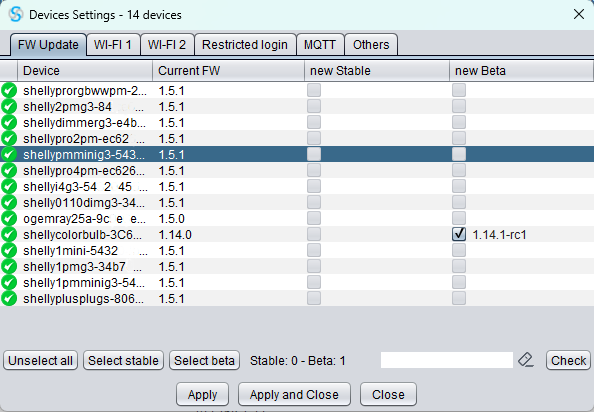
Here the selected devices are listed in the same order as in the main table; the sort order can be changed by clicking on the column headers; to return to the original
sort, simply right-click on the table and select "Remove sort".
For each device the installed firmware version and the versions of any updates, both stable and alpha/beta,
are displayed (note that keeping the mouse pointer over a version number displays the full identifier of the version itself).
If a new firmware is available, a checkbox appears next to the version number; selecting it and pressing the Apply button starts the update.
If a new stable version is available and a more recent alpha or beta version is not installed on the device, the corresponding checkbox is selected by default.
Below the table there are selection buttons, two counters indicating the number of checkboxes currently selected,
a search filter that acts on the Devices and Current FW columns and a button that is used to check again the availability of new firmware.
The filter, consistently with what happens everywhere else in Shelly Scanner, responds to the keys Ctrl-F and Ctrl-E.
If a new firmware checkbox is selected but is hidden according to the filter criteria, no update will be executed when pressing Apply.
If desired, you can select multiple rows: in this case, the selection buttons below the table only affect the selected set.
In case a device is listed in the local archive but has not yet been detected by Shelly Scanner the New stable column has an "Any" checkbox;
selecting it and pressing Apply generates a deferrable update process that will be executed, if the availability of a stable firmware update is detected, when the device is online.
Primary (1) and secondary (2) WI-FI

Using this section you can change the Wi-Fi connection parameters for the selected devices.
It is always possible to change SSID and password; for other parameters, depending on the initial selection, there are some notable differences:
- if one device only is selected, it is possible to manage both dhcp and static IP;
- if multiple devices are selected, all with dhcp enabled, it is not possible to switch to static IP (it would not be possible to define an IP for each of the devices);
- if all the selected devices are configured with static IP you can switch to dhcp or change all the parameters except the IP;
- In the case of mixed devices settings (some using dhcp others using static IP) you can switch to dhcp for all of them or, by selecting "Keep", change SSID and password and also Netmask, Gateway and DNS for only the devices that have static IP (Netmask and Gateway, when left empty, remain unchanged).
Restricted login

Using this section you can change the user and password to limit access to the device configuration or remove the access restriction.
If there are second generation devices among those selected, the username must necessarily be "admin".
MQTT configuration

Using this section you can modify the values that characterize the MQTT connection of the selected devices.
There is a difference between first-generation devices and devices of subsequent generations,
consequently the forms are different depending on whether only devices among the first or second groups are selected
or whether the selection is mixed (in this case only the parameters common to the different generations can be modified).
The fields left empty in this section are not altered.
The custom prefix can be edited only if only one device is selected.
A "Copy From ..." button allows you to easily copy connection parameters from a device among the full list.
Other parameters

Here you can edit some additional parameters for all selected devices; specifically:
- NTP Server address;
- Cloud connection enablement;
- "Reset through input" enablement for devices that have this option.